







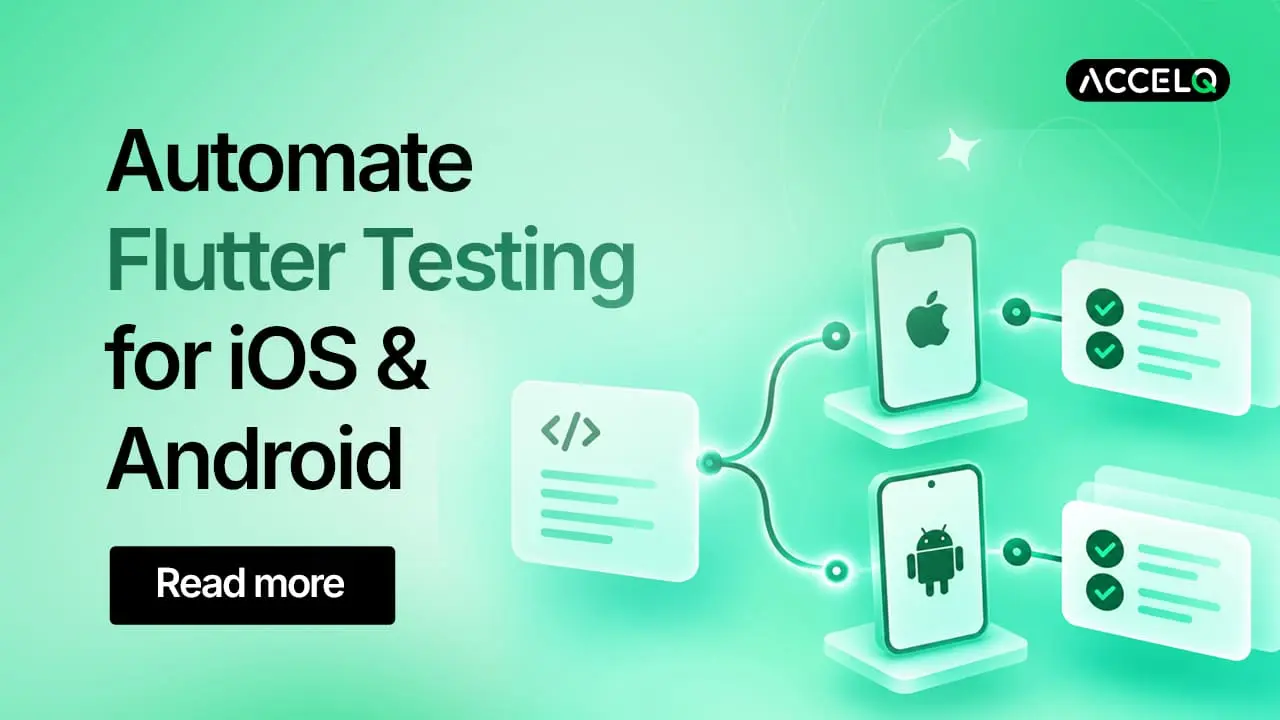
How to Automate Flutter Mobile App Testing for iOS and Android (Including Flutter Web Where Semantics Are Enabled)

Quick Answer
Flutter test automation validates apps built with Google’s Flutter SDK across the platforms they compile to. ACCELQ automates codeless Flutter testing via Flutter’s Semantics Tree, which is also the accessibility layer Flutter itself uses for screen readers.
That way, one test suite runs against both iOS and Android without duplicating test logic or having to write platform-specific scripts. Flutter Web apps can be automated the same way when the app’s Semantics Tree is turned on in the browser. It isn’t enabled by default.
Key Takeaways
- Flutter apps compile to native code for iOS and Android and render their own UI on the web. This is why generic automation tools struggle with them.
- ACCELQ reads Flutter’s Semantics Tree, the same accessibility layer Flutter uses for screen readers, to identify elements codelessly from one test suite across iOS and Android.
- That same approach can extend to Flutter Web too, but only once the app turns on its Semantics Tree in the browser, since it’s off by default.
- Custom widgets need to be wrapped correctly to expose their elements. Flutter’s showSemanticsDebugger: true flag lets you check this on mobile before you start testing.
- ACCELQ covers real devices, cloud device labs like BrowserStack, Sauce Labs, and Perfecto, multi-device scenarios, and direct CI/CD integration.
- Appium needs a separate Flutter Driver and per-platform setup. Flutter’s own integration_test requires writing Dart code. But ACCELQ automates Flutter apps without any of that scripting overhead.
- Core Problems with Flutter Testing
- The Core Technical Unlock: Flutter's Semantics Tree
- Codeless Flutter Testing: Setting Up Automation with ACCELQ
- One Test Suite for iOS and Android (for Flutter Teams)
- What About Flutter Web?
- Running Flutter Tests on Every Build in Your CI/CD Pipeline
- Common Mistakes Teams Make Automating Flutter Apps
- Flutter Driver vs. Appium
- ACCELQ
–
Core Problems with Flutter Testing
Flutter apps run into automation trouble for these specific reasons:
No native UI controls
A single Dart codebase compiles down to native code for iOS and Android. There’s no WebView bridge in between the way there is with React Native or Ionic. Flutter also renders every widget itself, on its own canvas, instead of using the operating system’s native UI controls.
Standard accessibility trees don’t apply
Most mobile automation tools work by reading the native accessibility tree that Android and iOS expose. Flutter doesn’t do this. It builds widgets on its own canvas. Because of this, generic automation tools, and even Appium in its default form, need the Flutter Driver add-on to see what’s on screen.
Flutter Web removes the DOM entirely
Flutter offers two web renderers, canvaskit and skwasm. Both paint the entire interface into a single canvas rather than building it out of HTML elements. There’s no DOM structure underneath for a browser-based automation tool to grab onto by default, only pixels.
The Core Technical Unlock: Flutter’s Semantics Tree
If you’re new to Flutter testing, start with What Is Flutter Framework? A Guide to Flutter App Testing.
Flutter builds its Semantics Tree for its own accessibility support, so screen readers can describe what’s on screen to users. Every built-in widget- buttons, text fields, list items automatically exposes itself in this tree. It allows straightforward automation of the standard Flutter UI right out of the box.
ACCELQ reads this Semantics Tree to identify elements. It’s the same underlying mechanism that Flutter uses, applied to test automation rather than accessibility. Hence, it holds up consistently across iOS, Android, and Web builds that expose it.
Be warned: If a custom widget isn’t wrapped correctly, its children can collapse into a single opaque node in the tree. On Android, this can show up as everything folding into one generic android.view.View, with none of the individual elements underneath visible to any automation tool.
The fix: Wrap custom widgets in Semantics, MergeSemantics, or ExcludeSemantics, depending on what needs to be exposed. To check whether this is set up correctly, Flutter has a built-in flag:
showSemanticsDebugger: true
Turn this on during development, and you’ll see what the semantics tree looks like, including anything that’s collapsed or hidden.
Setting Up Flutter App Automation with ACCELQ
Getting a Flutter app under automation with ACCELQ is a codeless process:
- Connect the build. Upload your APK for Android or IPA for iOS directly. (See the Mobile Automation section overview for the full setup path.)
- Real device setup. ACCELQ supports real device automation for both Android and iOS, as well as emulators and simulators. (Setting up a real Android device for Automation, Setting up a real iOS device for Automation)
- Cloud device labs. For scale, ACCELQ integrates with BrowserStack, Sauce Labs, and Perfecto, so you can test on literally thousands of devices. (Supported Mobile Cloud Labs in ACCELQ)
- Multi-device scenarios. Some Flutter apps, chat apps, and collaboration tools need two devices interacting in the same test. ACCELQ enables running multiple mobile devices within a single scenario for such cases. (Working with multiple mobile devices in a Scenario)
The setup is completely codeless, and remains the same whether the app under test is Flutter, native Android, or native iOS.
Take ACCELQ’s 14-day free trial to see how Flutter test automation works for yourself.
One Test Suite for iOS and Android (for Flutter Teams)
ACCELQ identifies elements through the Semantics Tree rather than platform-specific native APIs. Because of this, the same test logic is functional and applicable across both platforms. You do not have to maintain one script for iOS and another for Android.
What does change is under the hood, invisible to you. Change occurs at the level of platform-specific handling like driver profiles and launch activity detection for Android APKs. The actual test, with steps, assertions, and flow, remains the same.
That’s different from Appium, where configuring cross-platform runs requires testers to maintain separate capability configurations and account for platform quirks in your scripts, or from Flutter’s own integration_test package. The latter can run across platforms, but your QA team will have to write and maintain Dart code for it to do so.
Here’s some added intelligence on Effective Strategies for Testing Your Flutter Apps.
Conditions for Flutter Web Testing
As mentioned, Flutter’s web renderers, canvaskit and skwasm, paint the entire UI into a single canvas rather than building out a DOM tree. Tools like Selenium or Playwright, which depend on reading DOM elements, can’t “see” anything in a default Flutter Web build.
Note: Flutter Web isn’t actually DOM-blind by design. Flutter translates its internal Semantics Tree into an accessible HTML DOM structure, so screen readers can understand the page. This Semantics Tree makes mobile automation work.
But this isn’t switched on by default. It has to be explicitly turned on. This can be done by a user clicking an invisible “Enable accessibility” button that Flutter Web apps expose. Or, devs have to add a couple of lines of code (SemanticsBinding.instance.ensureSemantics()) at startup. (Flutter’s web accessibility documentation)
Effectively, this means that a Flutter Web app can be automated with the same Semantics Tree-based approach used for iOS and Android, but only if the app exposes its semantics tree in the browser.
That’s up to your dev team when building the app. If your Flutter Web build already turns semantics on for accessibility compliance, automating it is easy. If it doesn’t, that’s a build-level change your devs have to make before you can automate web.
Running Flutter Tests on Every Build in your CI/CD Pipeline
If automated Flutter tests only get triggered manually before a release, regression bugs can remain undetected for days or weeks between runs. ACCELQ prevents that by plugging directly into the CI/CD tools most teams are using. That way, Flutter test suites run automatically on every build.
Extra Reading: Automating mobile apps built on Flutter
Here’s how this looks in practice:
- Jenkins: ACCELQ has a dedicated Jenkins plugin. Install it, and add ACCELQ Connect as a post-build action in your Jenkins job configuration. It will trigger your ACCELQ test suite as part of the build. (CI Test Execution: Jenkins)
- GitHub Actions: You can invoke ACCELQ jobs directly from a GitHub Actions workflow. Create the CI job in ACCELQ, then add ACCELQ’s GitHub Action to your repository’s workflow YAML file to trigger it on push or pull request events. (CI Integration with GitHub Actions)
- Azure Pipelines: ACCELQ’s plugin is available directly from the Azure Marketplace, which adds ACCELQ Azure CI Connect as a build job in your pipeline stages. (Setting up Azure Pipeline Plugin for CI/CD)
ACCELQ also supports TeamCity, Bamboo, CircleCI, Flosum, and Gearset, so most teams can plug their Flutter test suite into whatever pipeline they’ve standardized on. (Integrations & Extensions).
Common Mistakes Teams Make Automating Flutter Apps
Quick Answer: The mistakes that often trip up teams automating Flutter apps: forgetting to wrap custom widgets so ACCELQ can see them, building separate test suites for Android and iOS, sticking to emulators instead of testing on real devices, and turning off self-healing when something looks off instead of checking what changed.
For a deeper dive, have a look at Challenges in Automating Flutter Apps Using Traditional Framework .
Skipping semantic wrapping on custom widgets
If a custom widget’s children collapse into one opaque node, no automation tool can see inside it. Before assuming an ACCELQ scenario is broken, turn on Flutter’s showSemanticsDebugger: true flag and check whether the element is actually exposed in the tree.
Otherwise, you might have to spend time debugging the wrong layer.
Treating Flutter automation like a native-only problem
Some teams bring over Espresso or XCUITest habits and end up building separate object repositories for the Android build and the iOS build. They are effectively rebuilding the same test twice.
That defeats the point of ACCELQ’s centralized object repository, built to identify Flutter elements once through the Semantics Tree and reuse them across both platforms.
If your team is maintaining parallel Android and iOS test suites in ACCELQ for the same Flutter app, it means the object repository isn’t being shared as it’s designed to be. (ACCELQ Cross-Browser and Cross-Platform Testing Capabilities)
Testing only on emulators
Emulators are useful for early development, but they don’t catch performance under real hardware constraints, OS-specific rendering quirks, and device fragmentation.
ACCELQ supports real device automation for both Android and iOS di, and extends that to BrowserStack, Sauce Labs, and Perfecto for cloud-scale device coverage. (Setting up a real Android device for Automation, Supported Mobile Cloud Labs in ACCELQ)
Turning off self-healing
ACCELQ’s self-healing is turned on by default to handle the run-time element drift common in Flutter apps as widgets get rebuilt or restyled between releases.
Some teams disable it when they see a test behave differently than expected, without checking the self-healing report first to see what changed.
Don’t do that because that report is usually the fastest way to understand whether an app change or an actual defect caused the failure. (Self-Healing: Comprehensive Approach to Adaptive Element Identification)
Flutter Driver vs. Appium
Flutter Driver is not a competitor to Appium. It’s an add-on to Appium.
Appium is a general-purpose automation framework that connects with native accessibility APIs on Android and iOS. Flutter apps don’t expose their widgets via those APIs by default. They render everything on their own canvas.
Basically, Flutter Driver is the bridge for Appium to “see” inside a Flutter app.
“Flutter Driver vs. Appium” isn’t really a choice. It’s Appium + Flutter Driver, working together.
This setup requires you to install the Flutter Driver extension, write test code in Dart or another supported language, and maintain separate configurations per platform.
ACCELQ vs. Appium vs. Flutter’s Native integration_test
| Criteria | ACCELQ | Appium + Flutter Driver | Flutter native integration_test |
|---|---|---|---|
| Coding required | No, codeless | Yes, Java/Python/JS + Dart VM Service knowledge | Yes, Dart |
| Cross-platform in one script | Yes, one test suite runs on iOS and Android without duplicating test logic | Achievable, but needs more setup and per-platform capability differences | Yes, same Dart code runs across mobile, web, and desktop |
| Custom widget handling | Handled via Semantics Tree, with clear guidance on wrapping unwrapped widgets | Possible, but requires manual handling of semantics/accessibility IDs | Direct access to widget tree, but requires dev-level Dart knowledge for edge cases |
| Cloud device lab access | Built-in integrations (BrowserStack, Sauce Labs) | Not built-in, needs separate device farm setup | None built-in |
| CI/CD integration | Native integration into CI/CD pipelines | Possible, requires custom pipeline scripting | Possible via flutter test, requires pipeline scripting |
| Maintenance burden | Low, self-healing and centralized object repository | Higher, script and capability maintenance across platforms | Moderate, tied to app codebase changes, dev-owned |
Stop guessing whether a tool can handle your Flutter app. Take a free trial and watch ACCELQ automate your actual iOS and Android builds in real time. No scripts, no sample apps.
Take ACCELQ’s 14-day Free Trial
FAQ's
What is Flutter app test automation?
Flutter app test automation is the process of validating the behavior of apps built with Google's Flutter SDK. The tests must run across the platforms they compile to, without QA manually testing each screen and flow by hand.
Can I automate a Flutter app for both iOS and Android with one test script?
Yes. ACCELQ identifies Flutter elements through the Semantics Tree instead of platform-specific native APIs. So, the same test script runs on both iOS and Android without any rewriting. The test steps, assertions, and flow stay the same.
Can you automate Flutter apps without writing Dart code?
Yes. ACCELQ enables codeless Flutter testing for apps by reading Flutter's Semantics Tree. That means teams can build and run tests without writing Dart, Java, or any scripting language.
Why do some Flutter UI elements fail to get detected by automation tools?
This usually happens when a custom widget isn't properly wrapped in Flutter's Semantics, MergeSemantics, or ExcludeSemantics widgets. It causes its child elements to collapse into a single opaque node that automation tools can't see or interact with.
Does Flutter test automation work the same way on iOS and Android?
Yes. It works the same way because automation is based on Flutter's Semantics Tree rather than platform-specific native APIs. This is why the same test logic runs on both iOS and Android without writing separate scripts.
Can Flutter web apps be automated the same way as Flutter mobile apps?
Yes, it's possible to automate web apps the same way as mobile apps when the Flutter Web app has its semantics tree turned on. Flutter translates this tree into an accessible DOM structure for screen readers. It's off by default and needs to be explicitly enabled by the app.
How do I make custom Flutter widgets visible to automated testing tools?
Wrap the widget in Semantics, MergeSemantics, or ExcludeSemantics, depending on what needs to be exposed. Unlike built-in widgets, custom widgets don't automatically expose themselves in Flutter's Semantics Tree. Without wrapping, their children can collapse into a single opaque node that no automation tool can see inside.
Turn on Flutter's showSemanticsDebugger: true flag to check whether the fix worked before you start testing.




You Might Also Like:
 How to Choose a Test Automation Tool: 6 Criteria
How to Choose a Test Automation Tool: 6 Criteria
 TOP 15 Test Management Tools
TOP 15 Test Management Tools
 15 Test Coverage Tools Later, I Finally Found What Actually Works in 2026